 BetaLobby
A developer sends you an internal app sharing link. You open it, tap Open in Play Store app, and the Play Store stops you with this:
Internal app sharing is turned off. To download this app, turn on Internal app sharing in Google Play settings.
The setting it mentions isn't on the normal Settings page. It sits under the Play Store's Developer options, and that section only appears after you unlock it. The whole thing takes about a minute.
1Open the link and tap "Google Play settings"
The link first opens in your browser. Tap Open in Play Store app.
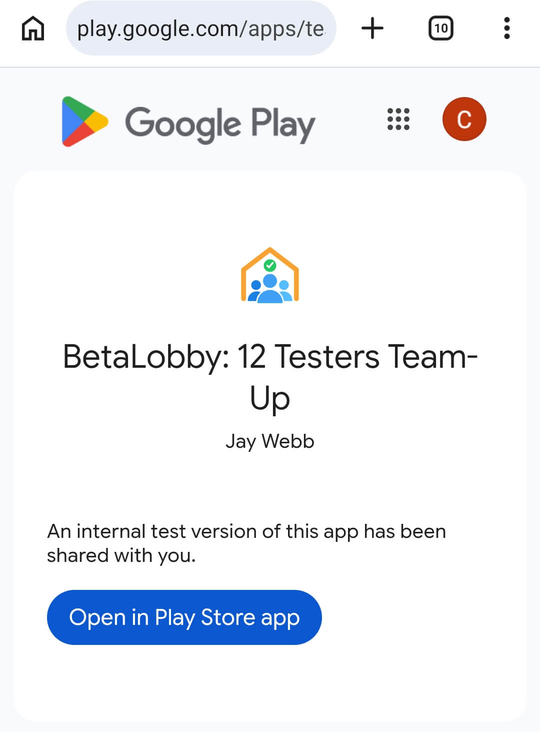
If internal app sharing is off, the Play Store shows the dialog above. Tap Google Play settings in it to go straight to the Play Store's Settings.
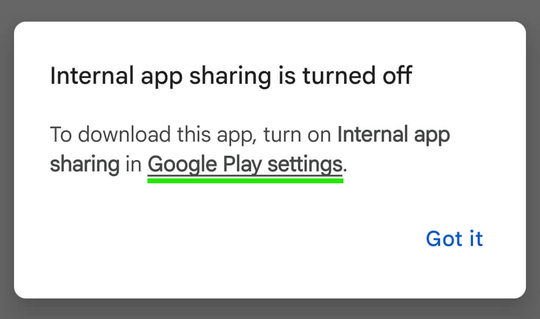
You can also get there yourself: in the Play Store, tap your profile picture in the top right, then Settings.
2Tap "Play Store version" 7 times
In Settings, expand About and find Play Store version.
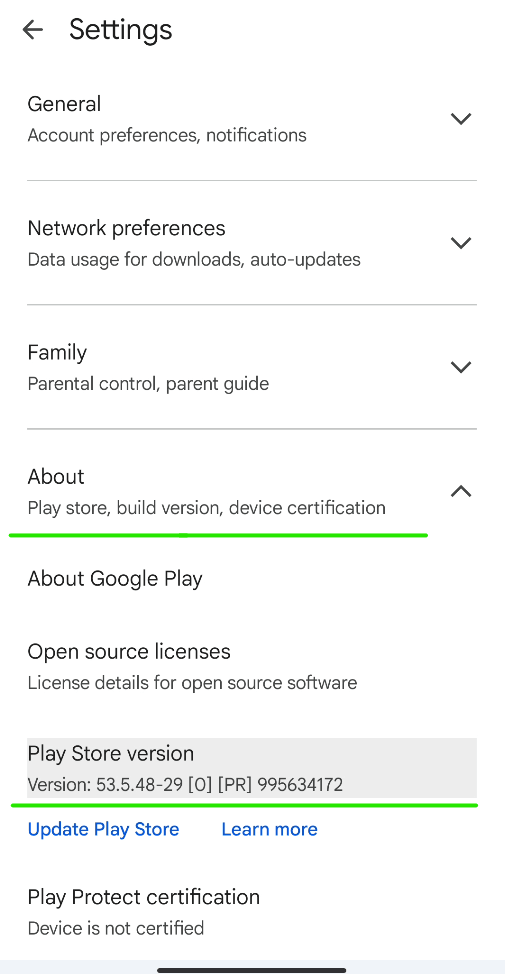
Tap Play Store version 7 times in a row. A message pops up: You are now a developer!
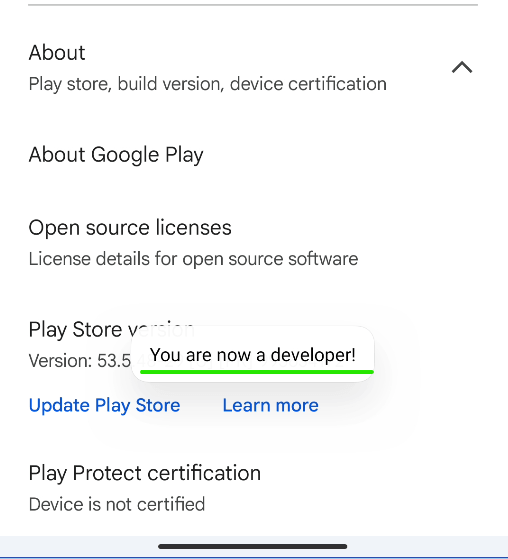
This only unlocks a few testing options in the Play Store. It doesn't change your account or your phone's system settings.
3Turn on "Internal app sharing" in "Developer options"
Back in Settings, expand General. A new item has appeared at the bottom: Developer options (Internal app sharing and device integrity). Tap it.
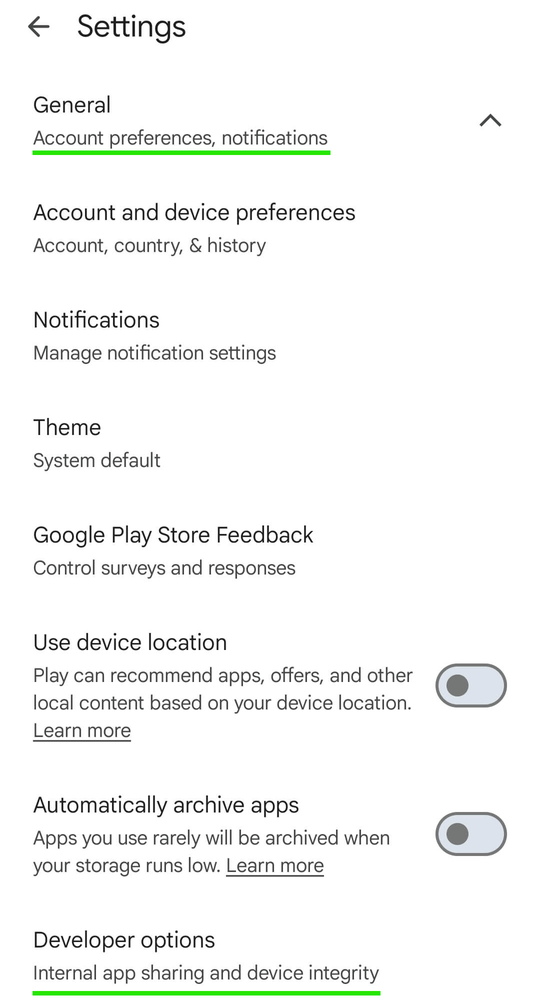
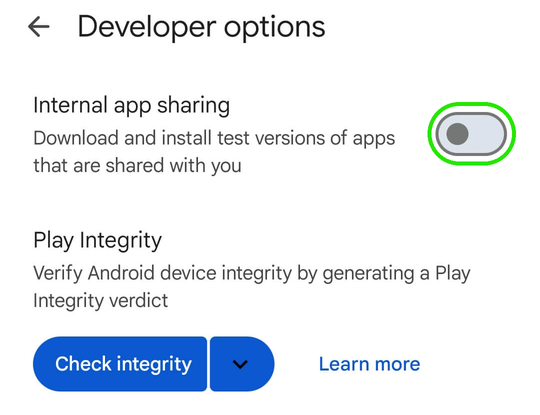
Turn on the Internal app sharing switch.
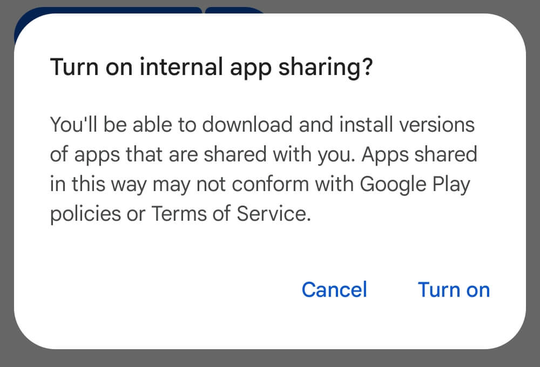
The Play Store asks you to confirm. Tap Turn on.
4Open the link again and install
Go back to the link and open it again. This time the Play Store shows the app page with an Install button.
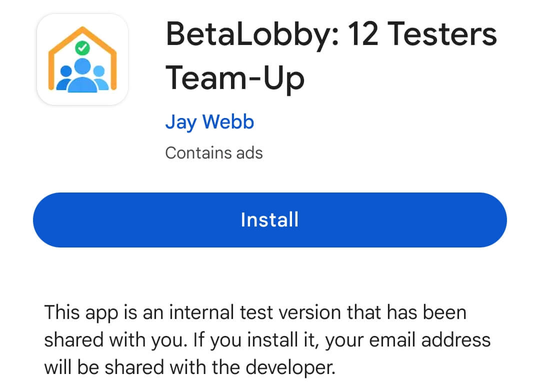
The page also says your email address will be shared with the developer if you install. That's how internal app sharing works: the developer can see who installed the test version.
You only need to do this once per phone. The switch stays on for every internal app sharing link after that.
5Still can't download?
If the switch is on and the link still won't download, the problem is the developer's setting, not your phone. In Play Console, it's under Test and release > Testing > Internal app sharing, on the Uploaders and testers tab, in Manage testers:
- Anyone you shared the link with can download: anyone who has the link can install it.
- Restrict access to email lists: only Google accounts in the selected email lists can download. If yours isn't on the list, ask the developer to add you, or to switch to the first option.
If you are on the list, check that the Play Store is using that same Google account. With several accounts on the phone, the link opens with the one currently selected.
If you're the developer: internal app sharing builds are re-signed by Google with a different key, so Google Sign-In can fail in them. See the internal testing section of this post for the fix.
Internal app sharing is great for trying a build on your own phone, but it doesn't count toward the 12 testers you need for production access. That still has to happen in closed testing, and that's the part BetaLobby helps with.