 BetaLobby
Your signed .aab uploaded without a single error on Create release, passed Preview and confirm cleanly, and your manifest code hasn't changed in months. Then you open Publishing overview (with Managed publishing off or when manually submitting changes) and find Submit 1 change for review greyed out above a red 1 issue found banner:
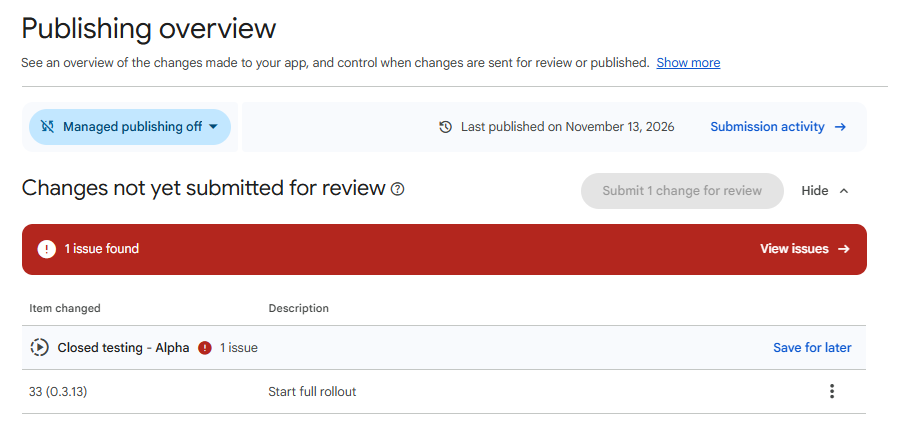
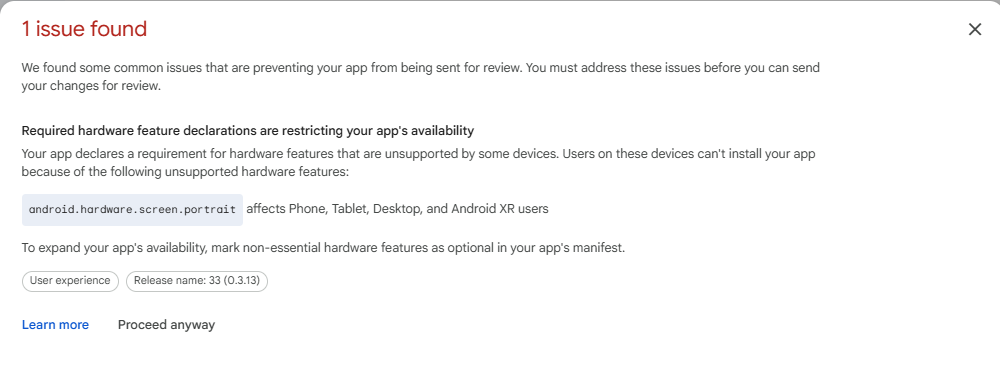
Clicking View issues opens a dialog that looks like a hard rejection:
1 issue found
We found some common issues that are preventing your app from being sent for review. You must address these issues before you can send your changes for review.
Required hardware feature declarations are restricting your app's availability
Your app declares a requirement for hardware features that are unsupported by some devices. Users on these devices can't install your app because of the following unsupported hardware features:
android.hardware.screen.portraitaffects Phone, Tablet, Desktop, and Android XR usersTo expand your app's availability, mark non-essential hardware features as optional in your app's manifest.
Here is why this started appearing on apps whose code hasn't changed, how to send your already-uploaded .aab for review in two seconds without wasting a versionCode, and how to clear the warning permanently in your next release.
1Fastest fix right now: click "Proceed anyway" (no rebuild needed)
Despite the red title and the line saying "You must address these issues before you can send your changes for review", you do not need to discard this release or rebuild right now.
Once an .aab finishes uploading to Play Console, its integer versionCode is permanently consumed—fixing AndroidManifest.xml today would force you to increment versionCode (for example, 33 to 34), run a fresh release build, and repeat your internal testing checks.
Instead, follow the three-click bypass right inside Play Console:
- In the 1 issue found dialog, click Proceed anyway next to Learn more.
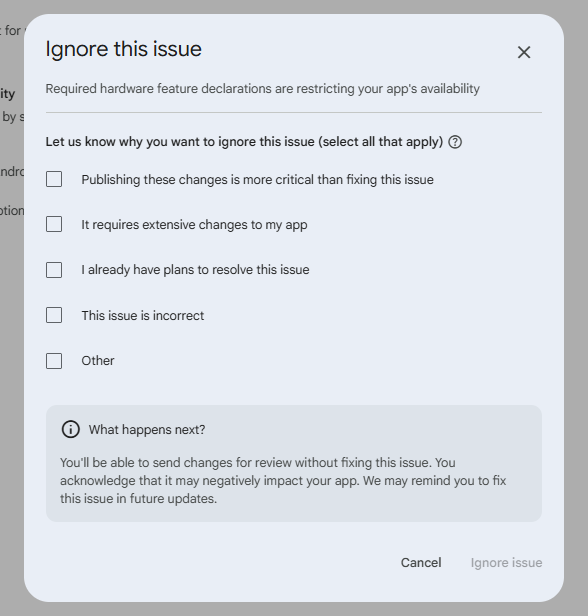
- Play Console opens a second confirmation dialog titled Ignore this issue ("Let us know why you want to ignore this issue"). Check the reason that fits—such as I already have plans to resolve this issue or Publishing these changes is more critical than fixing this issue—to enable the Ignore issue button, then click Ignore issue:
- Back on Publishing overview, the greyed-out Submit 1 change for review button unlocks so you can submit your existing
.aabfor review normally.
Does ignoring it hurt review or phone users?: No. As the What happens next? note confirms, your release goes through Google Play review normally and ships to regular Android phones and portrait-capable tablets as usual. Play Console may remind you on future updates, and strict landscape-only hardware (such as fixed-landscape desktop setups, car displays, and Android XR headsets) simply remains filtered out until your next update.
2Why untouched code suddenly triggers this check
Two things combine to trigger this message—even if android.hardware.screen.portrait appears nowhere in your codebase:
- Play Console's new adaptive & Android XR availability check: Alongside Android 16 (
targetSdk 36) adaptive layout rules, Google Play rolled out a pre-review check on Publishing overview to stop 2D phone apps from accidentally excluding ChromeOS/desktop windowing, docked landscape tablets, and Android XR headsets (which run standard Android apps inside movable spatial windows). - Implicit
AAPT2hardware requirements fromscreenOrientation: Whenever any<activity>in your merged manifest sets a fixed portrait orientation—such asandroid:screenOrientation="portrait",sensorPortrait, oruserPortrait—Android'sAAPT2build tool implicitly injects a required hardware feature into your compiled manifest:
<!-- Implicitly added by AAPT2 whenever any activity locks portrait orientation -->
<uses-feature
    android:name="android.hardware.screen.portrait"
    android:required="true" />
Even if your own MainActivity doesn't lock orientation, Expo's default "orientation": "portrait" in app.json or an <activity> inside a third-party QR scanner, camera, or payment SDK will merge android:screenOrientation="portrait" into your final .aab and trigger the exact same banner.
3Permanent fix for your next release (AndroidManifest.xml)
For your next scheduled update, pick whichever option matches your UI:
Option A: Keep portrait lock on phones, make the hardware feature optional
If your app is designed for portrait on phones and you don't want to redesign every screen for landscape yet, keep android:screenOrientation="portrait" on your activity and explicitly override the implicit hardware requirement inside <manifest> (above <application>) in AndroidManifest.xml:
<manifest xmlns:android="http://schemas.android.com/apk/res/android">

    <uses-feature
        android:name="android.hardware.screen.portrait"
        android:required="false" />

    <application
        android:label="@string/app_name"
        ...>
- Phones (< 600dp) continue respecting
android:screenOrientation="portrait"as before. - Google Play sees
android:required="false"instead oftrue, allows installation on landscape-only tablets, desktops, and Android XR spatial windows, and stops flagging your release on Publishing overview.
If a third-party SDK explicitly declared required="true": When a dependency's own AndroidManifest.xml explicitly writes <uses-feature android:name="android.hardware.screen.portrait" android:required="true" />, Gradle's manifest merger lets true win unless you add tools:replace="android:required":
<manifest xmlns:android="http://schemas.android.com/apk/res/android"
    xmlns:tools="http://schemas.android.com/tools">

    <uses-feature
        android:name="android.hardware.screen.portrait"
        android:required="false"
        tools:replace="android:required" />
Where to add this in each framework
- Android Studio / Flutter / Bare React Native / Capacitor: Add the
<uses-feature>block toandroid/app/src/main/AndroidManifest.xml(orapp/src/main/AndroidManifest.xmlin single-module native projects). It only touches the manifest—no Java/Kotlin code or R8 ProGuard rules change—though you should still verify your next build on Internal testing and check that screens remain usable inside resizable large-screen or desktop windows. - Expo (Managed Workflow / EAS Build): New Expo projects default to
"orientation": "portrait"inapp.json. Becausenpx expo prebuildregeneratesandroid/, don't editAndroidManifest.xmldirectly unless you commit bare native folders—either change"orientation": "default"inapp.json(if your layout already adapts to landscape), or add a small config plugin inapp.config.js:
// app.config.js
const { withAndroidManifest } = require("expo/config-plugins");

module.exports = ({ config }) =>
  withAndroidManifest(config, (mod) => {
    const features = mod.modResults.manifest["uses-feature"] ?? [];
    const existing = features.find(
      (f) => f.$?.["android:name"] === "android.hardware.screen.portrait"
    );
    if (existing) {
      existing.$["android:required"] = "false";
    } else {
      features.push({
        $: {
          "android:name": "android.hardware.screen.portrait",
          "android:required": "false",
        },
      });
    }
    mod.modResults.manifest["uses-feature"] = features;
    return mod;
  });
- Unity: Either set Default Orientation to Auto Rotation under Project Settings > Player > Android > Resolution and Presentation, or enable Custom Main Manifest under Publishing Settings and add
<uses-feature android:name="android.hardware.screen.portrait" android:required="false" />toAssets/Plugins/Android/AndroidManifest.xml.
Option B: Remove fixed orientation altogether
If your screens already adapt cleanly to landscape and split-screen layouts—which Android 16 (targetSdk 36) enforces automatically on displays with smallest width ≥ 600dp—remove android:screenOrientation="portrait" from <activity> (or set "orientation": "default" in Expo app.json). Without a fixed portrait activity, AAPT2 stops implying android.hardware.screen.portrait on its own.
4Verify locally & check other implicit hardware traps
Before uploading your next versionCode, you can confirm the implicit requirement is gone locally:
- In Android Studio: Open
AndroidManifest.xmland click the Merged Manifest tab at the bottom to confirm your explicitandroid:required="false"override is present and see which library contributed anyscreenOrientationor<uses-feature>attributes (implicitAAPT2features only appear inaapt2output below). - With
aapt2CLI: Runaapt2 dump badging app-release.apk(on a release APK or the universal APK extracted from your.aab) and check thatandroid.hardware.screen.portraitnow appears asuses-feature-not-requiredrather thanuses-feature.
Google's same Required hardware feature declarations check can also flag permissions that implicitly demand hardware missing on tablets, desktops, and Android XR headsets. If your modal lists one of these alongside screen.portrait, override them the exact same way:
| Permission in manifest | Implicit feature(s) added by AAPT2 |
Required override in AndroidManifest.xml |
|---|---|---|
android.permission.CAMERA |
android.hardware.camera and android.hardware.camera.autofocus |
Mark both android:required="false" (overriding camera alone still blocks Chromebooks, tablets, and front-camera-only devices lacking autofocus) |
android.permission.RECORD_AUDIO |
android.hardware.microphone |
<uses-feature android:name="android.hardware.microphone" android:required="false" /> |
CALL_PHONE / SEND_SMS |
android.hardware.telephony |
<uses-feature android:name="android.hardware.telephony" android:required="false" /> |
Sent for review? What comes next
If you hit a different message earlier on Create release or Preview and confirm—such as 16 KB native library alignment, an AD_ID declaration mismatch, or a duplicate versionCode—check the full lookup table in Google Play Console AAB Upload Errors: Causes and Fixes.
For personal developer accounts publishing a closed testing release, getting past Publishing overview unlocks your opt-in link—and starts the real pre-launch requirement: you must run your closed test with at least 12 testers for 14 days continuously before you can apply for access to production (see 12 Testers for 14 Days: What "Continuously" Really Means).
Recruiting 12 testers with real Android devices—and keeping them active for two straight weeks without early uninstalls—is usually the hardest part of shipping solo. BetaLobby (free, no paid plans) puts 16 developers into one Team mode group using a single shared Google Group, verifies real installs automatically without screenshots, and records daily check-in opens across all 14 days.