 BetaLobby
Rolling out a new .aab on Google Play does not mean everyone gets it today. By default, the Play Store waits until a phone is on unmetered Wi-Fi, idle, and charging before auto-updating in the background—so users and closed testing testers routinely stay on older builds for two or three days unless something nudges them.
Google Play gives you three legitimate ways to prompt or force an update, depending on whether you already shipped the old build without update code, want a gentle native bottom sheet on every future release, or need an instant hard cutoff across dozens of legacy versions:
| Method | Code required? | Works on builds already live? | Can users dismiss it? | Multi-version control |
|---|---|---|---|---|
1. Play Console Recovery tools > Prompt users to update |
None | Yes (any .aab with Play App Signing) |
Yes (re-appears on every cold restart) | One old versionCode per action |
2. Google Play In-App Updates API (Flexible / Immediate) |
SDK in app | Only builds that shipped the SDK | Flexible: yes (×) / Immediate: full-screen |
Automatic for all future versions |
3. Backend / Remote Config min_version gate |
Version check in app | Only builds that shipped the check | No (true hard block) | Blocks 1 through N-1 at once |
Never build a self-updating APK downloader for Google Play. Downloading an
.apkfrom your own server and launching an install intent requiresREQUEST_INSTALL_PACKAGES, which violates Google Play's Device and Network Abuse policy—even if that permission only sits inside an older test-track bundle (see Google Play Console AAB Upload Errors). Always route updates through Google Play.
1Zero code: Play Console "Recovery tools > Prompt users to update"
Even if your published app has zero update-checking code inside it, Play Console can tell the Google Play app on users' phones to display a full-screen update dialog the next time they cold-start a specific outdated version.
Step 1: Open the right track tab (Closed testing vs. Production)
There is a small navigation difference between Closed testing and Production in Play Console:
- Closed testing: Go to Test and release > Testing > Closed testing and click Manage track next to your track—Play Console opens directly on the Releases tab, where Manage release sits right on your active release row.
- Production: Go to Test and release > Production—Play Console opens on Release dashboard by default, so switch to the second tab (Releases) first to reach Manage release and Release history.
Inside any release details page, the Recovery tools dropdown sits in the top-right corner with Prompt users to update:
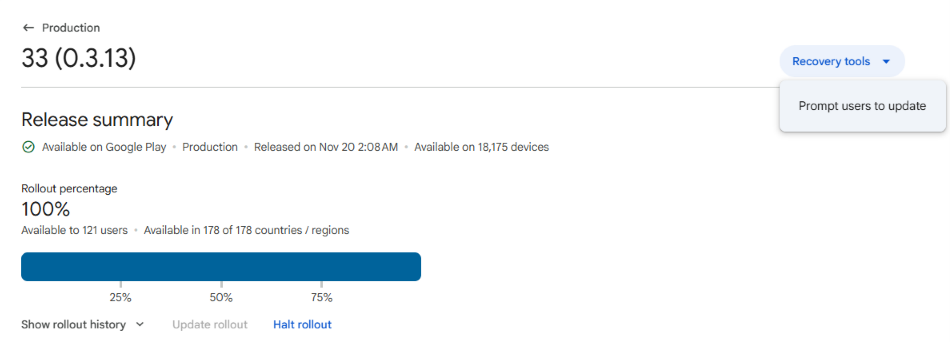
Step 2: Avoid the "Unavailable / New version missing" trap
Almost everyone hits the same wall on their first try: you click Manage release on your brand-new release (for example, 33 (0.3.13)), select Recovery tools > Prompt users to update, and get blocked by Unavailable (New version missing) with Next greyed out:
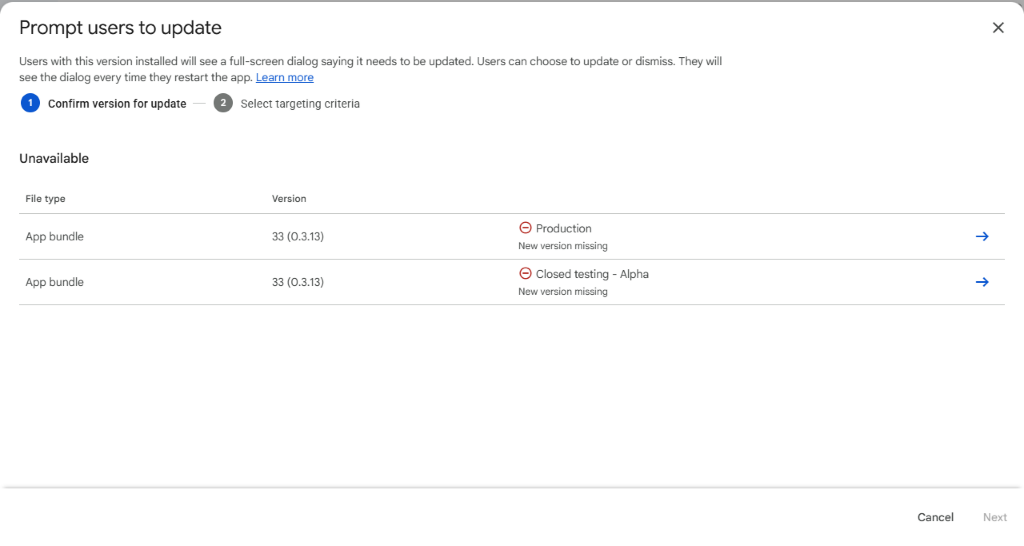
Why? Because Prompt users to update must be triggered on the older version you want users to leave, not the newest version you just published. Since 33 is already your highest build, there is no 34 above it yet.
To pick an older version cleanly, use either path:
- From your track's
Releasestab: Scroll down, click Show next to Release history, click the right arrow (→) on the older release you want users to update away from (such as32 (0.3.12)), and click Recovery tools > Prompt users to update. - From
App bundle explorer(fastest when checking multiple builds): Go to Test and release > Latest releases and bundles, click View all app bundles, open32 (0.3.12)in App bundle explorer, and click Recovery tools > Prompt users to update (you can also jump straight there from33's release details page under Deactivated app bundles →→→ Explore app bundle).
On 32 (0.3.12), Step 1 (Confirm version for update) switches to Choose a bundle with Newer version available in all tracks, and Next lights up so you can target all users (or filter by country/region or Android version):
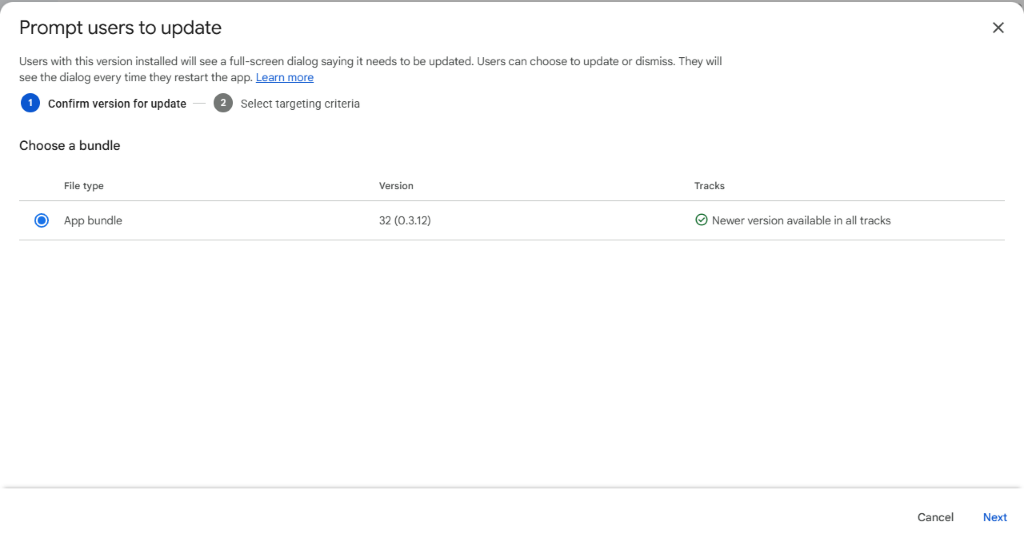
Three real-world limitations to know before relying on Recovery tools
- Every track holding that old bundle needs a newer release: If
32was published on both Closed testing and Production, rolling33out only to Closed testing still leaves32unavailable on Production (New version missing) until33(or higher) is live there too. - One
versionCodeat a time (and≤ 100install count masking): Play Console cannot batch-select versions1through32in one click. Worse, All app bundles masks every install count under 100 as≤ 100—even when0devices remain on builds1–29. Before clicking through old bundles blindly, open Statistics in the left menu, pick Installed audience, and break it down by app version to see exact single-digit device counts—usually only your last one or two versions still have real users. - Cold start only, and users can dismiss it: As the dialog states ("Users can choose to update or dismiss. They will see the dialog every time they restart the app."), it does not interrupt an already-open session and cannot stop an outdated client from calling a removed API endpoint if the user taps dismiss.
2Automatic on every release: Google Play In-App Updates API
If you noticed another Android app pop up a crisp native Google Play — Update available bottom sheet ("You can keep using this app while downloading the update") right after launch, that app integrated Google's official Play In-App Updates library (com.google.android.play:app-update, Flutter's in_app_update, React Native's sp-react-native-in-app-updates, or Unity's Play In-App Update plugin).
Once shipped inside your app, you never have to touch Recovery tools in Play Console again—whenever the Play Store has a higher versionCode for that user's track, the app can trigger one of two native flows:
- Flexible (
AppUpdateType.FLEXIBLE): Slides up a dismissible half-screen Google Play card, downloads the update in the background while the user keeps using your app, and prompts for a quick restart once downloaded. Best for regular feature updates and test builds. - Immediate (
AppUpdateType.IMMEDIATE): Launches a full-screen Google Play update screen. Remember to re-checkAppUpdateInfoinsideonResume()so pressing the system Back button doesn't bypass a required update.
Two traps the official tutorials gloss over
inAppUpdatePriority(0–5) does not exist in the Play Console web UI: Countless blog posts tell you to run Flexible updates whenupdatePriority < 4and Immediate updates whenupdatePriority >= 4. Play Console has no input box forinAppUpdatePriority—every release uploaded in the browser defaults to priority0unless you setinAppUpdatePriorityvia the Google Play Developer Publishing API (edits.tracks.update). If you publish manually in Play Console, gating your prompt onupdatePriority > 0means your update dialog will never fire.- Local Android Studio builds always fail (
ERROR_APP_NOT_OWNED-10/ERROR_API_NOT_AVAILABLE-3): Running viaadb installor Android Studio's Run button isn't owned by Google Play (and standard emulators lack the Play Store), soAppUpdateManagerrejects the check withERROR_APP_NOT_OWNED(-10),ERROR_API_NOT_AVAILABLE(-3), orUPDATE_NOT_AVAILABLE. To test the real Google Play sheet in two minutes without polluting a track:- Upload a lower
versionCode(say10) to Test and release > Testing > Internal app sharing and install it on your phone from its link (how to enable the Play Store toggle: Play Store "Internal app sharing": How to Turn It On). - Upload a higher
versionCode(11) to Internal app sharing, open that second link on your phone so Google Play sees11, do not tap Update on the store page, and launch your installed10app from the home screen—the real Google Play update sheet will pop right up.
- Upload a lower
3Instant multi-version hard cutoff: backend minimum-version gate
When you ship a breaking database or API change—or want one switch that catches versions 1 through 32 simultaneously—pair a tiny remote config check (min_android_build in your backend or Firebase Remote Config) with your app's startup and foreground-resume lifecycle. When the device's versionCode < min_android_build, render a blocking screen with an Update on Google Play button opening market://details?id=<your.package>.
Keep two production safety rules in mind before raising min_android_build:
- Confirm 100% rollout on every active track first: If
33is live on Closed testing while Production is still reviewing or staged at32, raisingmin_android_buildto33sends public users to Google Play where no Update button exists yet, locking them out of your app. Also pause unused old tracks (like an old Internal testing build) so test accounts don't get confused. - Fail open when offline: If the config request times out on a flaky connection, let the app open normally rather than bricking offline launches.
4Shipping updates during your 14-day closed test: what testers experience
Solo developers running Google's mandatory 12 testers / 14 days closed test hit this exact question mid-cycle: I pushed a bug-fix build—how do I get my testers onto the new version?
Three rules save a lot of unnecessary stress:
- Google Play does not notify testers when you update a closed test: Testers receive zero emails or push alerts when a new release passes review, and background auto-update still waits 24–72 hours for Wi-Fi and idle charging.
- Publishing updates does NOT reset your 14-day clock: Rolling out new
versionCodes on your closed testing track keeps your 14-day opt-in streak completely intact (see 12 Testers for 14 Days: What "Continuously" Really Means). Better yet, Question 8 of the production access questionnaire explicitly asks "What changes did you make to your app based on what you learned during your closed test?"—shipping real updates driven by tester feedback is one of the strongest signals you can show Google's reviewers. - Prefer gentle reminders over hard locks mid-test: Because closed testing releases still wait for Play review and Play Store cache refresh, flipping on a hard
min_versionblock on day 9 can stop testers from opening your app right when they sit down to test. Use a dismissible Flexible in-app update sheet—or simply let your testers know a new build is live.
If you're running your 14-day closed test on BetaLobby (free, no paid plans), 16 developers test each other's apps in one Team mode squad on real Android phones: whenever a new release passes review, tap Mark a new version on your app card under Mine so teammates see a NEW badge during their daily check-in, read what changed, and jump straight to Update on Google Play without missing a day.